Step 3 — Sign in
/auth/loginWhat you see
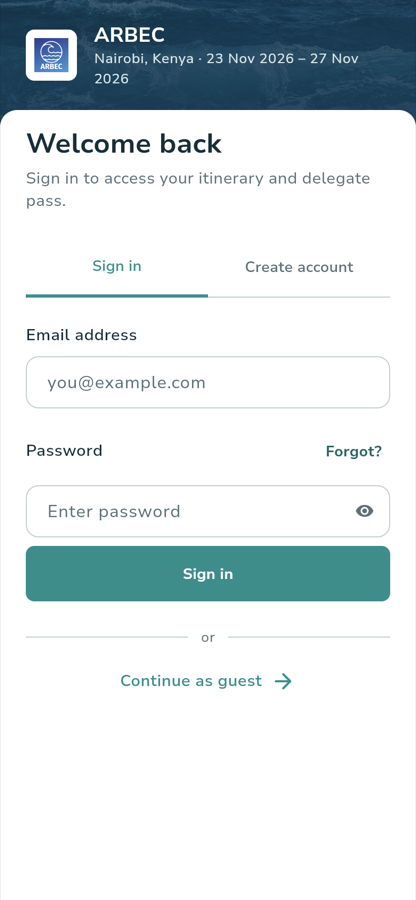
The screen is branded with the conference you last opened:
ARBEC Nairobi, Kenya · 23 Nov 2026 – 27 Nov 2026
Welcome back Sign in to access your itinerary and delegate pass.
Two tabs — Sign in and Create account — and under them two fields. Sign in is selected when you arrive here.
Email addressPlaceholder you@example.com
PasswordPlaceholder Enter password, with a Forgot? link on the same row, and an
eye icon at the right of the field.
What you tap
- Email address — type the address you registered with.
- Password — type your password.
- Sign in.
No account yet? Create account registers one on the other tab.
What happens
The app verifies the credentials, stores your session, and navigates to your conference's Today screen. The conference you last opened is remembered, so the next launch goes straight back to it.
On a debug build pointed at localhost, a QUICK TEST ACCOUNTS panel
appears above the form with one tap-to-fill chip per role — Super Admin,
Organizer, Attendee. The Attendee chip fills
evidence.attendee@arbec.local. It compiles out of release builds and out of
any build pointed at a real API, because those accounts exist only in a local
database.
make up starts Flutter web with FLUTTER_WEB_MODE ?= release, so the panel
is not there. Start the web target in debug mode to get it.
Where you go next
:::note Walked against the running app The screen and a successful sign-in with the local attendee account were both verified on 29 September 2026, and the screenshot is a real capture. :::